Basic SEO: Meta Keywords

Welcome to another installment of 10-minute branding!

10-Minute Branding Refresher: How do you build your brand 10 minutes at a time? You start small, and you simply begin. An excellent way to convince yourself to get going is to plan your ending. You can even set a timer. Then, be sure to bask in the success of your huge accomplishment of actually beginning and also appreciate the amount of work that got done. Then, repeat the process tomorrow. And the next day. And so on. You will be amazed at your branding progress . . . 10 minutes at a time.

SEO or Search Engine Optimization, in a nutshell, helps your web site be found online.

Before you get started with meta tags, I would recommend you make sure search engines know your web site exists.  Or, more specifically . . . check whether your web site is indexed.  If you haven’t already done that, click on over to this article (Make Sure Your Web Site is Included in Search Engines’ Index). Then, review your web pages’ meta titles (read that story here) and descriptions (read that story here).

Our current installment in our SEO meta series is . . .

META KEYWORDS

This component is the easiest one yet. You just want to make sure you don’t use this particular tag.

In old-school web design, meta keywords were important in communicating the content of your web site to browsers. However, they were abused by developers, who often stacked desired keywords that weren’t even present in their content. As a result, google now ignores the tag entirely for standard searches, and bing actually uses the tag as a signal for spam. If you have a long laundry list of keywords or your keywords aren’t relevant to your content, you could be getting an SEO ding. As a result, we recommend reviewing your keywords to make sure they don’t raise any red flags. Or, you can err on the safe side and simply remove them altogether.

Below is an example of what keywords might look like in your code:

<html>
<head>
    <title>Brand Building for Small Business</title>
    <meta name=”description” content=”A Blog for Entrepreneurs Looking to Create and Develop their Corporate Identity.”>
<meta name=”keywords” content=”branding, small business, entrepreneurs, DIY, how tos, quick, easy, 10 minute branding”>
</head>

You can delete the entire bracketed component for the meta name “keywords.”

Once removed, the header above would look like this:

<html>
<head>
    <title>Brand Building for Small Business</title>
    <meta name=”description” content=”A Blog for Entrepreneurs Looking to Create and Develop their Corporate Identity.”>
</head>

Easy peasy!

QUESTION?

We’re always happy to hear from you.  Scroll down to the “Leave a Reply” section below.

Protect Your Brand: Check for Copyright Infringement

Welcome to another installment of 10-minute branding!

10-Minute Branding Refresher: How do you build your brand 10 minutes at a time? You start small, and you simply begin. An excellent way to convince yourself to get going is to plan your ending. You can even set a timer. Then, be sure to bask in the success of your huge accomplishment of actually beginning and also appreciate the amount of work that got done. Then, repeat the process tomorrow. And the next day. And so on. You will be amazed at your branding progress . . . 10 minutes at a time.

If you create something of value, someone, at some point, is going to try to steal it from you.

Image by Freepik

You’ll most likely encounter such a culprit even if you don’t go looking. However, if you stay vigilant and catch copyright infringement quickly, you don’t risk losing too much ground. I recommend performing this check once per month. (If you never see any copycats, you can extend the task to once every three or six months.)

SEARCH FOR TEXT

Use a search engine to search for your company name, company slogan, product name, product slogan, etc. I usually go about five pages deep. If you don’t see any infringement by that point, chances are you’re good.

SEARCH FOR YOUR GRAPHICS

Using google’s reverse image search, I would search for the portion of your logos (company and products) without the text, so you’re searching for any graphical components individually. To do so . . .

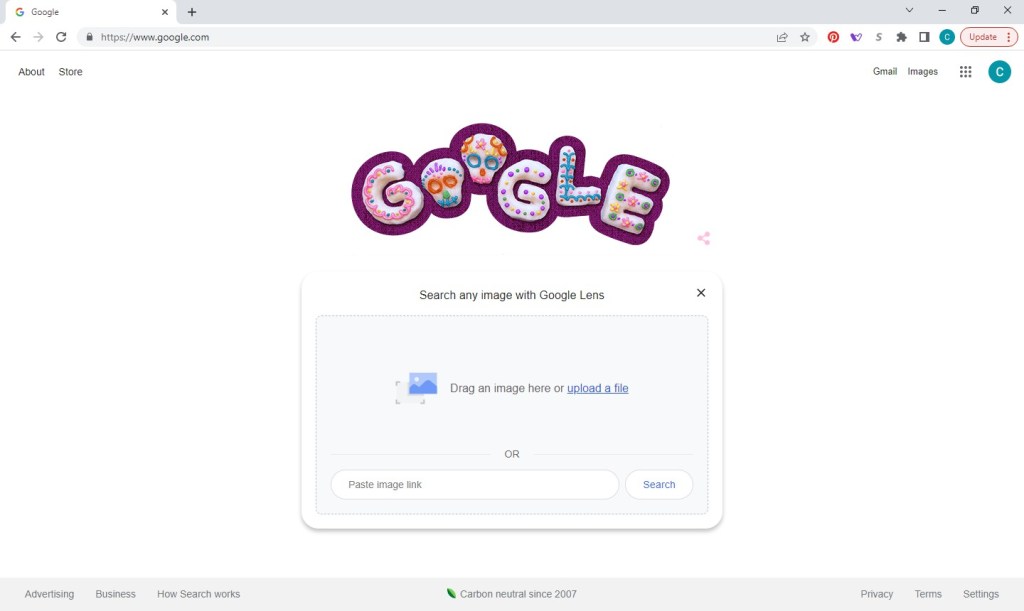
1. Go to google.com and click the camera icon at the far right of the search box.

2. Click the ‘upload a file’ link and follow the prompts to select your image.

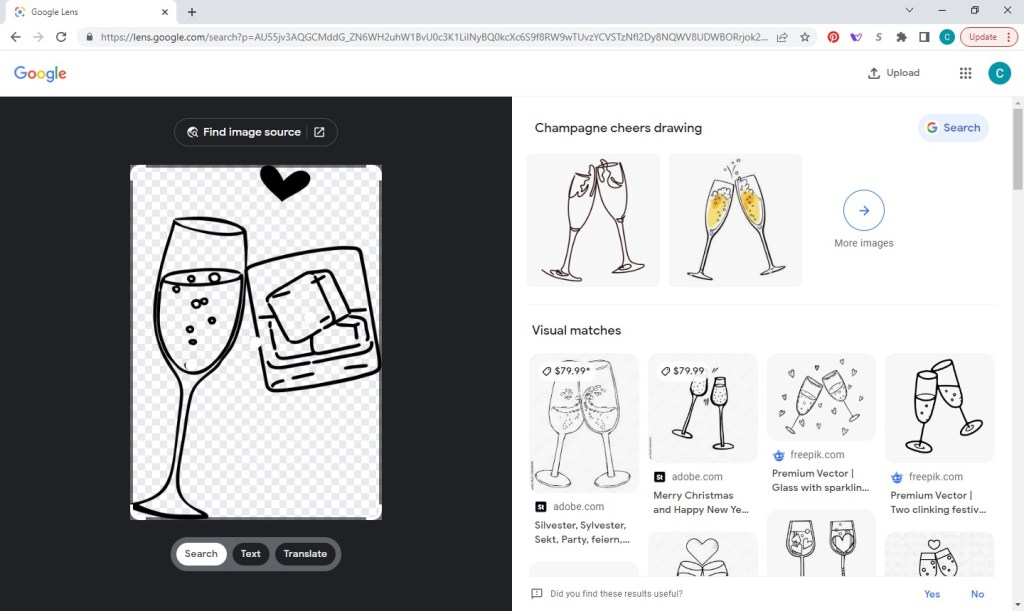
3. Google may automatically crop the searchable area of your image as was done for mine below. If so, you can simply drag the corners of the outline outward to extend the highlighted area of the picture.

4. Scan the “visual matches” for any copycats.

ISSUES

If you find any copycats, bookmark the web site(s) containing the infringement as you go. If you have a lawyer, forward your results. If not, stay tuned. We’ll elaborate on ‘next steps’ in a future post.

HAVE A QUESTION OR COMMENT?

We’re always happy to hear from you.  Scroll down to the “Leave a Reply” section below.

Basic SEO: Review Your Web Pages’ Descriptions

Welcome to another installment of 10-minute branding!

10-Minute Branding Refresher: How do you build your brand 10 minutes at a time? You start small, and you simply begin. An excellent way to convince yourself to get going is to plan your ending. You can even set a timer. Then, be sure to bask in the success of your huge accomplishment of actually beginning and also appreciate the amount of work that got done. Then, repeat the process tomorrow. And the next day. And so on. You will be amazed at your branding progress . . . 10 minutes at a time.

SEO or Search Engine Optimization, in a nutshell, helps your web site be found online.

The very first step is to make sure search engines know your web site exists.  Or, more specifically . . . check whether your web site is indexed.  If you haven’t already done that, click on over to this article (Make Sure Your Web Site is Included in Search Engines’ Index) and put aside this post for now.

A great second step is to review your web pages’ titles. (Read that story here.)

Next up . . .

META DESCRIPTIONS

The web page description is another component of “meta tags” that can communicate important information about the page to your visitors. 

If you’ve done a good job writing your “meta description,” that content will be displayed when your page is listed in a search engine’s results underneath the title.  For example . . .

This “snippet” (as google refers to this text) can determine whether a visitor clicks through to your page. However, google will automatically generate a snippet from your page’s content and virtually ignore your description if it doesn’t meet google’s criteria, bringing us to . . .

BEST PRACTICES FOR “SNIPPETS,” ACCORDING TO GOOGLE

  • Create a unique description for each page of your web site.
  • Include important information from your page, even if not in sentence format.
  • Some do’s and don’t of quality descriptions:
    • Don’t just list keywords; a home page should explain what your business does and include details (such as hours and location).
    • If the page is selling a product or service, do provide specific information.
    • Do summarize the content of the page.
    • Don’t be too short or generalize.
  • Use the meta description tag (see below).
An Example of the Meta Description Tag in Action in Your HTML:
 
<html>
<head>
    <title>Brand Building for Small Business</title>
    <meta name=”description” content=”A Blog for Entrepreneurs Looking to Create and Develop their Corporate Identity.”>
</head>

OPTIMAL DESCRIPTION LENGTH

While all of google’s best practices may suggest a weighty description, google will actually only display 155-160 characters on search results. Therefore, you have the lofty goal of incorporating a wealth of specific information in as few words as possible.

ONLY 10 MINUTES A DAY

You might be questioning this approach at this point, thinking, I already spent 10 minutes just reading this article!  If so, you’re done with your 10-minute branding exercise for the day!  Come back tomorrow prepared to get started on executing the task.  Once you reach 10 minutes, save your work and come back the next day!

QUESTION?

We’re always happy to hear from you.  Scroll down to the “Leave a Reply” section below.
Make Your Brand a Consistent Statement Throughout Your Business

Welcome to another installment of 10-minute branding!

10-Minute Branding Refresher: How do you build your brand 10 minutes at a time? You start small, and you simply begin. An excellent way to convince yourself to get going is to plan your ending. You can even set a timer. Then, be sure to bask in the success of your huge accomplishment of actually beginning and also appreciate the amount of work that got done. Then, repeat the process tomorrow. And the next day. And so on. You will be amazed at your branding progress . . . 10 minutes at a time.

So how do you make your brand a consistent statement throughout your business . . . in 10 minutes a day no less?!

The endeavor sounds so much harder and more intimidating than the actuality.

ENSURING BRAND CONSISTENCY: THE PROCESS

Day 1: Collect all the physical documents that your customers see.

(Remember that any task taking more than 10 minutes gets paused to continue the next day.)

Day 2: Make sure each collected piece fits your brand — logo, company colors, tag line, etc. Put any off-brand item aside.

Day 3: Repeat the process for all current advertising.

Day 4: Go through your website and any other online materials. You can bookmark any item needing to be addressed.

Day 5: Repeat the process for any signage, noting items in need of change.

Day 6: Fix identified issues. One piece per day is probably a reasonable goal, though more complicated items may need to be spread across multiple days.

And then you’re done! The process may takes weeks to complete, but if you approach it in a organized manner and commit to 10 minutes per day (no more or no less), your brand will be consistent in no time . . . without having to take away from the business of actually running your business!

GOING FORWARD

Having this process fresh in your mind will help you be attentive to branding your materials in the future. Still, you may want to put a reminder in your calendar for one or two years ahead (whichever seems more reasonable based on the quantity of materials you have) to repeat this process.

HAVE A QUESTION OR COMMENT?

We’re always happy to hear from you.  Scroll down to the “Leave a Reply” section below.

Basic SEO: Review Your Web Pages’ Titles

Welcome to our first official installment of 10-minute branding!

10-Minute Branding Refresher: How do you build your brand 10 minutes at a time? You start small, and you simply begin. An excellent way to convince yourself to get going is to plan your ending. You can even set a timer. Then, be sure to bask in the success of your huge accomplishment of actually beginning and also appreciate the amount of work that got done. Then, repeat the process tomorrow. And the next day. And so on. You will be amazed at your branding progress . . . 10 minutes at a time.

SEO or Search Engine Optimization, in a nutshell, helps your web site be found online.

The very first step is to make sure search engines know your web site exists.  Or, more specifically . . . check whether your web site is indexed.  If you haven’t already done that, click on over to this article (Make Sure Your Web Site is Included in Search Engines’ Index) and then save this post for tomorrow.

Once you’ve taken care of that quick task, you’re ready to move forward!

META TITLES

The web page title is part of a collection of “meta tags” that communicate important information about the page to web browsers as well as your visitors. 

The “meta title” is the title of each of your web pages that gets displayed when your page is listed in a search engine’s results.  For example . . .

The title is one factor that determines whether your web page gets displayed in someone’s search results, so you want to give all of your pages their best chance at seeing the light of day.

BEST PRACTICES ACCORDING TO GOOGLE

You may already have a title on each of your web pages.  If so, that’s a great start.  Then, you need only review them to be sure they’re optimal.  So whether you’re drafting your titles from scratch or reviewing existing ones, you’ll want to review Google’s “Best Practices” for meta titles:

  • Accurately describe the page’s content.
  • Create a unique title for each page.
  • Be brief but descriptive.
  • Use the title tag (see below).
An Example of the Meta Title Tag in Action in Your HTML:
 
<html>
<head>
    <title>Brand Building for Small Business</title>
    <meta name=”description” content=”A Blog for Entrepreneurs Looking to Create and Develop their Corporate Identity.”>
</head>

ONLY 10 MINUTES A DAY

You might be questioning this approach at this point, thinking, I already spent 10 minutes just reading this article!  If so, you’re done with your 10-minute branding exercise for the day!  Come back tomorrow prepared to get started on executing the task.  Once you reach 10 minutes, save your work and come back the next day!

QUESTION?

We’re always happy to hear from you.  Scroll down to the “Leave a Reply” section below.
How to Build Your Brand 10 Minutes at a Time

Photo Credit: jcomp – http://www.freepik.com

You start small.

Us humans generally hate new initiatives.  They’re intimidating and elusive, and we almost never know where or how to begin.  However, the trick — I’ve learned — does not lie in picking the perfect point of entry . . . or executing the perfect strategy.  The trick is simply to begin.  And an excellent way to convince yourself that it’s okay to begin is to plan your ending.  Set a timer if you must.  Promise to dedicate no more than 10 minutes to the task you’ve been procrastinating.  But.  Here’s the important part.  Do it again tomorrow.  And the next day.  And the day after that.  You will be amazed at the progress that can be made . . . 10 minutes at a time.

So, engaging our audience with ideas and how-tos for 10-minute chunks of branding progress is going to be the new approach for us at Brand Building for Small Business. Frankly, I was running out of time to contribute to this blog.  I love what we’ve created thus far and am extremely thankful for our followers who take the time out of their lives to read our posts and come back week after week.  Still, I was struggling to find the hours needed to put together my thoughts and share step-by-step how tos.  Like most people, my life is pretty full.  I own a small business, I’m raising two teenagers, I’m trying to maintain a household . . . and my sanity.  I’m only somewhat successful.  😊 As a result, I considered approaching our blog with this 10-minute strategy, which I’ve already effectively used to tackle a number of other areas of my life (says the women with a freshly caulked tub).  Knowing my time deficit is not an uncommon challenge, I had a lightbulb moment.  What if my partner and I each focus on dedicating only 10 minutes a day to this blog, writing about all the ways you can build your brand in only 10 minutes a day. . . .  There’s a lovely little symmetry there that spoke to us, and I hope the approach speaks to you.  Stay tuned. . . .

How to Create a Branded Happy Birthday Card for Your Business in Microsoft Word

Disclaimer:  While we only recommend products we know and love, we want to note we use affiliate links and may earn a commission for purchases made through those links.

A hand-written note in a branded birthday card goes a long way for showing your employees and your clients that your business is professional and that you care.

Thankfully, the process is easy.  I’m going to take you through the steps of making a folded 5×7” branded birthday card in Microsoft Word.

1. Open Microsoft Word and create a New Blank Document.  Change the margins of the page by selecting the Layout tab (at the top), clicking the Margins button, selecting Custom Margins, and changing the Top, Bottom, Left, and Right margins to .25 inches.

2. Click the Insert tab (at the top), click Text Box within the Text section, and select Simple Text Box.  Click the outline of the rectangle, hover over the center handle of the bottom line, and click and drag downward to increase the size just a bit. Then, right click the rectangle, choose More Layout Options…, click the Size tab, and input a Height of 10”. Next, select Absolute within the Width section and input 7”; click the Position tab and uncheck “Move object with text” from the Options section.  Right click the rectangle and select Format Shape.  Format the Fill as No Fill and the Line as a Solid Line, Black, 1pt in Width, and Dashed. 

3. Under the Format Shape heading, click Text Options, and select the icon to the furthest right that says Layout & Properties on mouseover. Change the Vertical Alignment to Bottom and input 0” for the Top, Bottom, Right, and Left margins. Click the content within the rectangle, which will select everything, and press delete.  Then repeat step 2 except select Draw Text Box instead of Simple Text Box and make the size of this text box 6.9” in height by 4.9” in width.  Within the Position tab, select Alignment within the Horizontal section and Centered from the drop down to its immediate right; change the Absolute position within the Vertical section to 5.5”.  Format the Fill as No Fill and the Line as No Line.

4. Set the alignment to centered by pressing Ctrl + E; then, type “Happy Birthday”.  Press the enter key to advance a couple lines spaces and insert your logo (Insert tab >  Pictures > This Device > browse to the image file for your logo > Insert).

Now you’re obviously going to want to do some formatting.  I added some line spaces, decreased the size of our logo to 1” in height, and changed the font of “Thank You” to Candellion in 80 pt.

5. Then, save your file, print on card stock, and cut!

Good luck! 

If you would prefer someone else do the creating and the printing for you (and the end product show up at your door step with envelopes included), we have a route available for you, too. Click here to personalize and purchase this Happy Birthday card on Zazzle.

If you have any questions or comments on this topic, we’d love to hear from you.  Scroll down to the comments section at the bottom of this page.